A backup you’ve never restored isn’t a backup — it’s a hope with a timestamp. The habit that actually protects a site is to automate WordPress backups of the two things you can’t rebuild, the database and the uploads, push them off the server to object storage, and prove on a schedule that you can restore them. I’ve inherited plenty of “backed-up” systems over the years whose backups turned out to be empty, unreadable, or sitting on the same disk that just died. This is the backup setup I trust: what it captures, how it runs unattended, and why the restore drill is the only part that really counts.
The only test that matters is the restore
Everyone measures backups by whether the job ran. That’s the wrong number. The only measurement that means anything is whether you can take yesterday’s backup and rebuild a working site from it, and most people never check until the day they desperately need to. That’s how you discover the dump was truncated, the uploads were skipped, or the encryption key is gone.
So when I automate WordPress backups, the restore is a first-class part of the design, not an afterthought. A backup exists to be restored, which means an untested backup is an assumption, and assumptions are exactly what fail under pressure. Everything else in this piece — what to capture, how to schedule it, where to store it — is in service of one goal: that when I pull an archive and run the restore, a real site comes back. If that step isn’t proven, the rest is theater.
What actually needs backing up
Two things on a WordPress site are irreplaceable: the database and the uploads directory. The database holds every post, comment, user, and setting; the uploads folder (wp-content/uploads) holds every image and media file you’ve ever added. Lose either and no reinstall brings it back. Everything else — WordPress core, themes, plugins — is code you can reinstall from source, so it doesn’t strictly need to live in the backup if you manage it as versioned code.
That distinction keeps backups small and fast, which matters more than it sounds. A backup that captures the whole filesystem including reinstallable code is bulky, slow, and expensive to store, so it gets run less often and pruned aggressively — the opposite of what you want. A lean backup of just the irreplaceable data can run frequently and be kept longer for the same cost. The WordPress backup documentation walks through the same split of database versus files, and it’s the foundation everything else builds on.
If you’re unsure whether something belongs in the backup, ask one question: could I recreate this from a source repository or a fresh install? If yes, it’s code and lives in version control. If no, it’s data and must be in the backup. That single test sorts almost everything cleanly.
The backup job, step by step
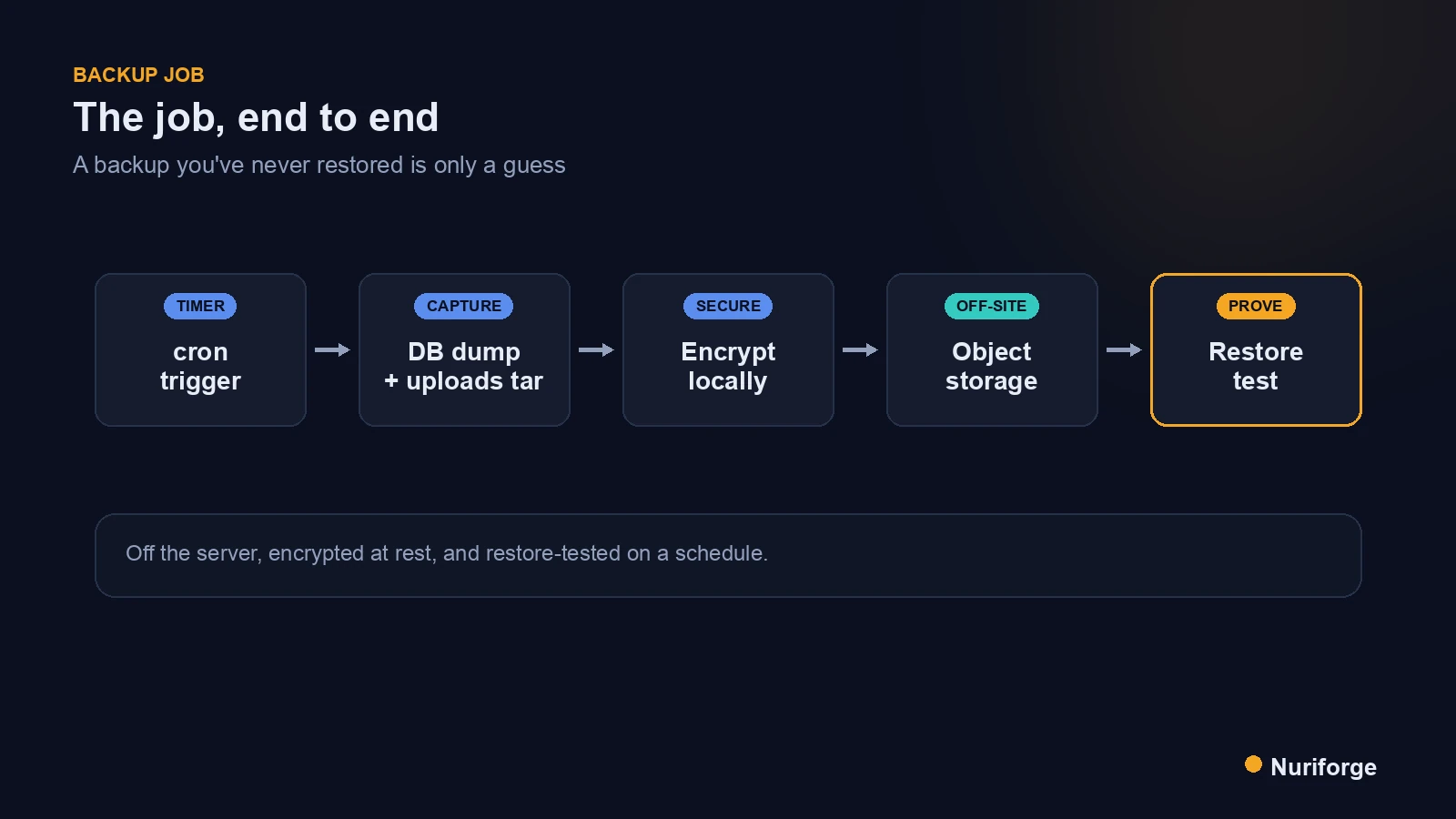
The job itself is a short shell script, and its shape is the same everywhere. First, dump the database to a single file — WP-CLI’s wp db export or mysqldump both produce a consistent SQL file you can restore from. Second, archive the uploads directory into a compressed tarball. Third, combine those into one timestamped bundle so a given backup is a single, self-contained artifact.
Fourth, encrypt that bundle before it leaves the server, because a backup contains your entire database — users, hashed passwords, private content — and it’s about to sit on storage you don’t physically control. Encrypting locally means the object store only ever holds ciphertext. Fifth, upload the encrypted archive to object storage with a versioned, timestamped key. The whole thing is maybe forty lines, runs in seconds to minutes depending on media size, and needs no plugin. The discipline of describing operations as small, repeatable scripts is the same one behind the content pipeline I run — if it happens on a schedule, it should be code, not a person remembering.
One detail that saves you later: have the script fail loudly. If the database dump is zero bytes or the upload returns an error, the job should exit non-zero and alert you, not quietly “succeed” and leave you with a folder full of empty files. A silent backup failure is worse than no backup, because it’s a failure wearing the costume of safety.
Schedule, retention, and encryption
Unattended is the whole point, so the script runs on a schedule — a cron entry, a systemd timer, or a scheduled task in your platform. Daily is a reasonable baseline for a content site; a busier site might dump the database more often than the uploads, since posts change faster than media. The cadence should match how much work you’re willing to lose, measured in hours.
If the upload target is Google Drive rather than object storage, a service account hits a quota wall that I describe in Service Account Storage Quota Exceeded: What I Used Instead (Coming soon).
Retention is a policy, not an accident. Keeping every backup forever is expensive and pointless; keeping only the latest means a corruption that happened last week and went unnoticed is now your only copy. A tiered scheme — keep several daily backups, a few weekly, a couple monthly — balances cost against being able to reach back past a problem you didn’t catch immediately. Set it once as a lifecycle rule on the bucket and let the storage expire old copies for you.
Two more rules make the difference between a backup and real protection. Off-site is mandatory: a backup on the same server, or even the same provider region, is not a backup against the failure that takes that server or region down. And encryption is non-negotiable for the reasons above. Off the machine, in another location, encrypted at rest — that’s the bar. It’s also the last item on my self-hosted WordPress hardening checklist, and the one that decides whether every other control was enough.
Restore drills without touching production
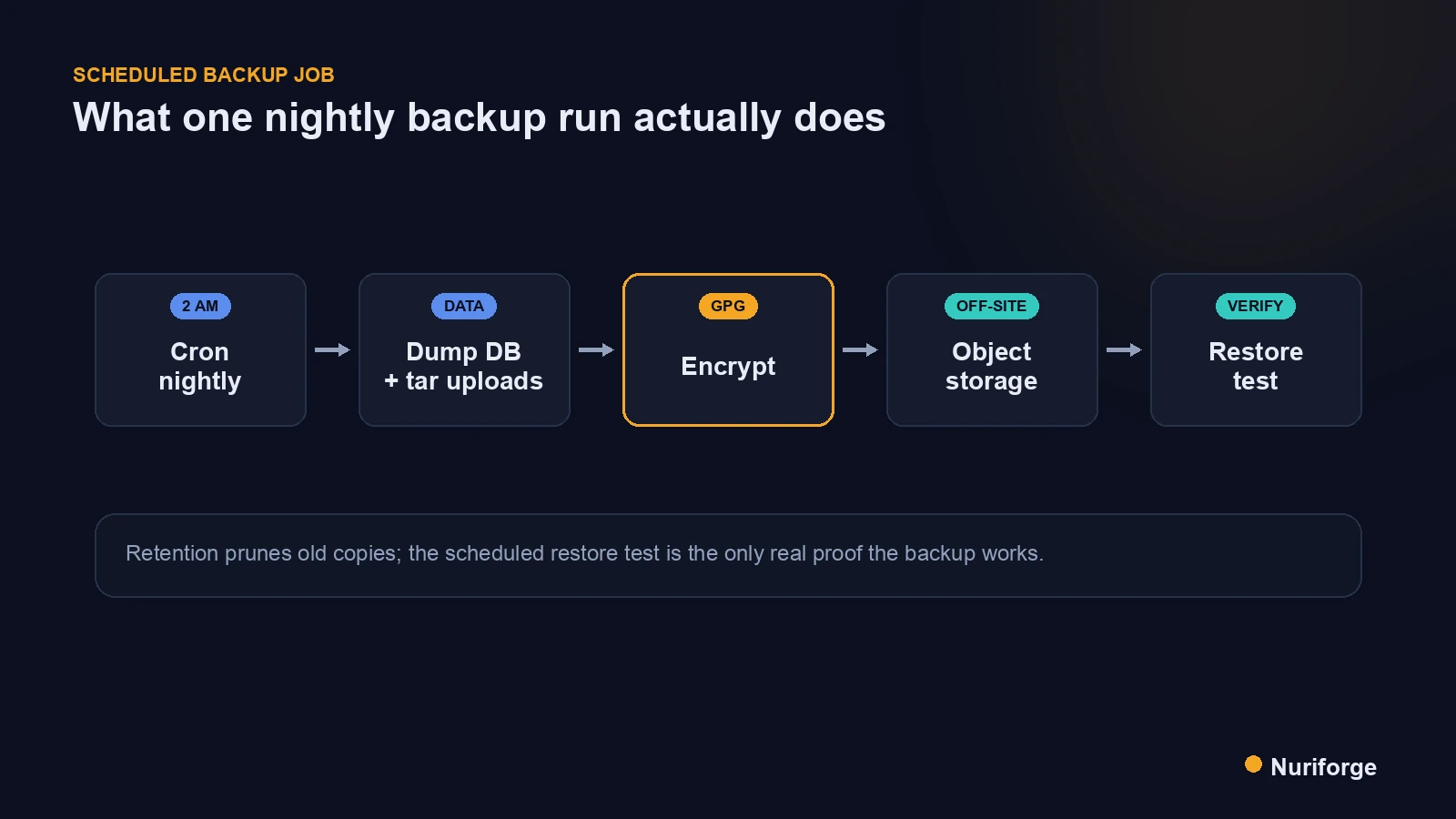
Here’s how I close the loop the setup is built around. On a schedule — monthly is plenty for a small site — I pull the latest backup, decrypt it, and restore it into a throwaway environment that isn’t production: a local container, a scratch database, a staging box. Then I actually load the site and click around. Do the posts render? Are the images there? Does login work?
A throwaway restore target is what makes this safe to do often, because you’re never risking the live site to test the backup. It also surfaces the unglamorous failures that only appear on restore — a character-set mismatch that mangles text, an uploads path that doesn’t line up, a dump that restores but is missing a table. You want to meet those problems during a calm Tuesday drill, not during an outage with the site down and your pulse up. The drill converts “I think we have backups” into “I restored one last month,” and only the second sentence is worth anything.
Plugin backups versus a scripted job
Plugins can back up WordPress, and for some sites they’re the right call. But once you’re running your own infrastructure, a scripted job gives you control the plugin can’t — over where data lands, how it’s encrypted, and how failures are reported. Here’s how the two compare on the things that actually decide whether a backup saves you.
| Concern | Backup plugin | Scripted job to object storage |
|---|---|---|
| Runs when | Via WordPress cron (needs traffic) | System cron / timer, independent of the app |
| What it captures | Often the whole site, bulky | Just the irreplaceable data: DB + uploads |
| Where it lands | Depends on the plugin/tier | Any object storage you choose, off-site |
| Encryption | Varies, sometimes paid | Encrypted locally before upload, always |
| Failure reporting | Easy to miss in the dashboard | Non-zero exit + alert you control |
| Restore testing | Rarely automated | Scheduled drill into a throwaway target |
FAQ
What do I actually need to back up on a WordPress site?
The database and the uploads directory, because those are the only irreplaceable parts. WordPress core, themes, and plugins are code you can reinstall from source, so if you manage them as versioned code they don’t need to be in the backup. Keeping backups to just the data makes them small enough to run often and keep longer.
How often should I automate WordPress backups?
Daily is a sensible baseline for a content site, and the right cadence is however many hours of work you’re willing to lose. A busy site might dump the database more frequently than the uploads, since posts change faster than media. Pair the frequency with a tiered retention policy so you can reach back past a problem you didn’t catch immediately.
Where should WordPress backups be stored?
Off the server, in object storage, ideally in a different location or region from the site itself. A backup on the same disk or the same server is worthless against the exact failure most likely to destroy the original. Encrypt the archive locally before uploading so the storage only ever holds ciphertext.
Do I need a plugin to back up WordPress?
No. A short shell script using WP-CLI or mysqldump plus a tar of the uploads, run from system cron and pushed to object storage, does the job with more control over encryption, destination, and failure alerts. Plugins are convenient, but a scripted job doesn’t depend on site traffic to fire and doesn’t hide failures in a dashboard.
How do I know my backups actually work?
Restore one on a schedule into a throwaway environment that isn’t production, then load the site and check that posts, images, and login all work. This is the single most skipped step and the only one that proves the backup is real. An untested backup is an assumption, and assumptions fail exactly when you need them not to.
My Thoughts
If you take one thing from this, make it the restore drill. It’s tempting to set up the backup job, watch it turn green, and move on — and I understand the pull, because the job running feels like the finish line. It isn’t. The finish line is the day you calmly rebuild a site from an archive and everything comes back, which only happens if you’ve practiced it when nothing was on fire. The backup that saves you is the one you’ve already restored at least once. Everything before that is preparation for a test you haven’t taken yet.